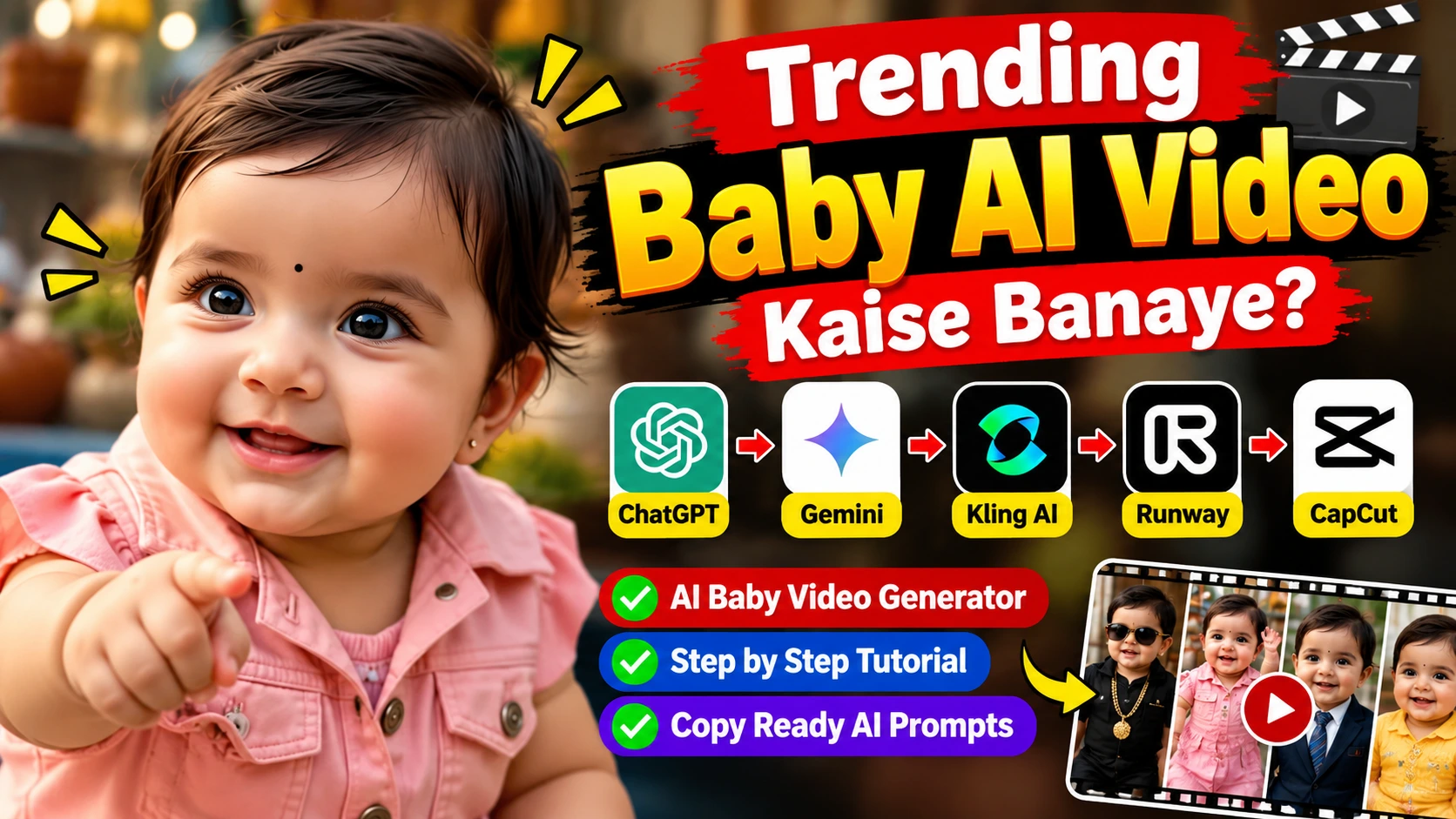
If you want to create a trending baby AI video from scratch, follow this workflow. You will use ChatGPT for prompts and dialogue, an AI image generator for the baby character, an AI video generator for animation, and a video editor for the final reel. For this example, we will create a 15-second funny talking baby video in Hindi.
Tools Required
| Tool | What You Will Do |
|---|---|
| ChatGPT | Generate the story, dialogue, and AI prompts |
| Google Gemini | Generate the baby character image, where available |
| Kling AI or Runway | Animate the image into a video |
| CapCut | Add voice, subtitles, music, and final edits |
| YouTube Studio or Instagram Insights | Review video performance after publishing |
Tool availability, free credits, and features may vary by account and region. You can use alternative tools that offer the same features.
Step 1: Generate the Video Idea Using ChatGPT
Open ChatGPT and enter the following prompt.
Act as a creative AI video scriptwriter.

Create a funny 15-second Hindi baby interview video for Instagram Reels and YouTube Shorts.

Requirements:
1. Use a fictional, cute baby character.
2. Write a funny question from a reporter.
3. Give the baby a short, unexpected reply.
4. Keep the dialogue natural and easy to understand.
5. Divide the video into four scenes.
6. Provide separate image and image-to-video prompts.
7. Keep the same baby appearance, outfit, and background in every scene.
8. Make the content family-friendly.

Return the result in a table with scene duration, visual description, dialogue, and video prompt.
Step 2: Generate the Baby Image Using Google Gemini
Open Google Gemini at https://gemini.google.com.
Select the image generation feature if it is available in your account. Paste the prompt below.
Baby image generation prompt:
Create a photorealistic portrait of a fictional, adorable 10-month-old baby with expressive brown eyes, chubby cheeks, soft black hair, and a gentle smile.

The baby is wearing a pastel pink outfit and sitting comfortably in a bright, cozy indoor setting. Use soft natural lighting, realistic skin texture, detailed eyes, and a softly blurred background.

Camera: medium close-up portrait.
Composition: baby centered in the frame.
Style: realistic photography.
Aspect ratio: vertical 9:16.

Keep the baby's face natural and age-appropriate. Avoid distorted facial features, extra fingers, text, logos, and watermarks.
Generate a few variations and select the best image. Save it to your device.
If your image generator does not support 9:16 output, generate the closest available portrait format and crop it later.
Step 3: Animate the Baby Image Using Kling AI or Runway
Open https://klingai.com or https://runwayml.com and check whether image-to-video generation is available to you.
Upload the baby image generated in Step 2. Select image-to-video mode, choose a short duration, and paste the following prompt.
Baby animation prompt:
Animate the uploaded image into a realistic, vertical 9:16 video.

The fictional baby looks toward the camera, blinks naturally, smiles, moves the head slightly, and makes small playful hand gestures.

Camera: stable medium close-up with a subtle cinematic push-in.
Lighting: soft natural daylight.
Movement: smooth, gentle, and realistic.
Character consistency: preserve the original face, hairstyle, clothing, and body proportions.

Keep the background consistent. Avoid face mor
phing, flickering, distorted hands, extra fingers, sudden camera movements, and changes in clothing.
Do not add text or a watermark.Generate the clip and review it carefully. If the baby’s face changes or the movements look unnatural, adjust the prompt or regenerate the clip.
Important: This step creates the visual animation. It may not generate accurate Hindi speech or synchronized lip movements. Add the dialogue during editing if your chosen tool does not support speech generation.
Step 4: Create the Hindi Voice and Dialogue
Use your own voice or a text-to-speech tool that supports Hindi. Check its commercial-use terms before using generated audio in monetized content. Use this sample dialogue:
Reporter: Aap bade hokar kya banoge?

Baby: Pehle mummy ka phone unlock karna seekhunga!
For a funny delivery, use a cheerful voice with a short pause between the question and answer.
If the AI video tool supports dialogue and lip synchronization, you can test the dialogue there. Otherwise, create the voice separately and combine it with the video in CapCut.
Do not use another person’s voice without permission or imitate a real person’s voice deceptively.
Step 5: Edit the Video in CapCut
Open https://www.capcut.com or use the compatible mobile app if available in your region.
Follow these steps:
- Create a new project and import your generated baby video.
- Set the canvas to 9:16 vertical format.
- Trim unnecessary pauses and visual errors.
- Import the Hindi voice recording or generated dialogue.
- Align the question and answer with the character’s movements.
- Add Hindi subtitles using readable text and suitable contrast.
- Add permitted background music or sound effects at a low volume.
- Preview the complete video with sound and without sound.
- Export at 1080 × 1920 if the source quality and export options support it.
Keep the dialogue clear. Do not let background music overpower the voice.
Step 6: Create a Thumbnail and Prepare the Upload
Use Canva at https://www.canva.com to create a thumbnail or cover image. Use a close-up of the baby, a clear facial expression, and a short title such as:
“Baby Ka Funny Reply!”
Avoid adding too much text. Make sure the face and title remain visible on mobile screens.
Before uploading, prepare a descriptive title and caption.
Suggested YouTube Shorts title:
Trending Baby AI Video Kaise Banaye | Talking Baby AI Video Tutorial
Suggested description:
Learn how to create a funny talking baby AI video using AI image generation, image-to-video animation, Hindi dialogue, and simple video editing. Follow this step-by-step workflow to create your own original AI baby reel.
This video uses an AI-generated fictional character.
Suggested hashtags:
#BabyAIVideo #AIVideo #TalkingBaby #AIVideoTutorial
Use relevant hashtags sparingly. They do not guarantee views or viral reach.
Step 7: Review the Results and Improve Your Next Video
After publishing, check the available analytics in YouTube Studio or Instagram Insights. Review these points:
- How long viewers watch the video.
- Where viewers stop watching, if retention data is available.
- Whether viewers replay, share, or comment on the video.
- Whether the opening scene communicates the idea quickly.
- Whether the dialogue and subtitles are easy to understand.
Test a different opening line or a shorter dialogue in your next video. Compare the results rather than assuming that one prompt will work for every audience.
Final Workflow at a Glance
ChatGPT for the idea and prompts → Gemini for the baby image → Kling AI or Runway for animation → Hindi voice generation → CapCut for editing → Canva for the cover → YouTube Shorts or Instagram Reels for publishing.
You can complete this workflow using a mobile phone or computer. Start with one short video, check the output at every stage, and improve the prompt whenever the character, motion, or audio does not look right.