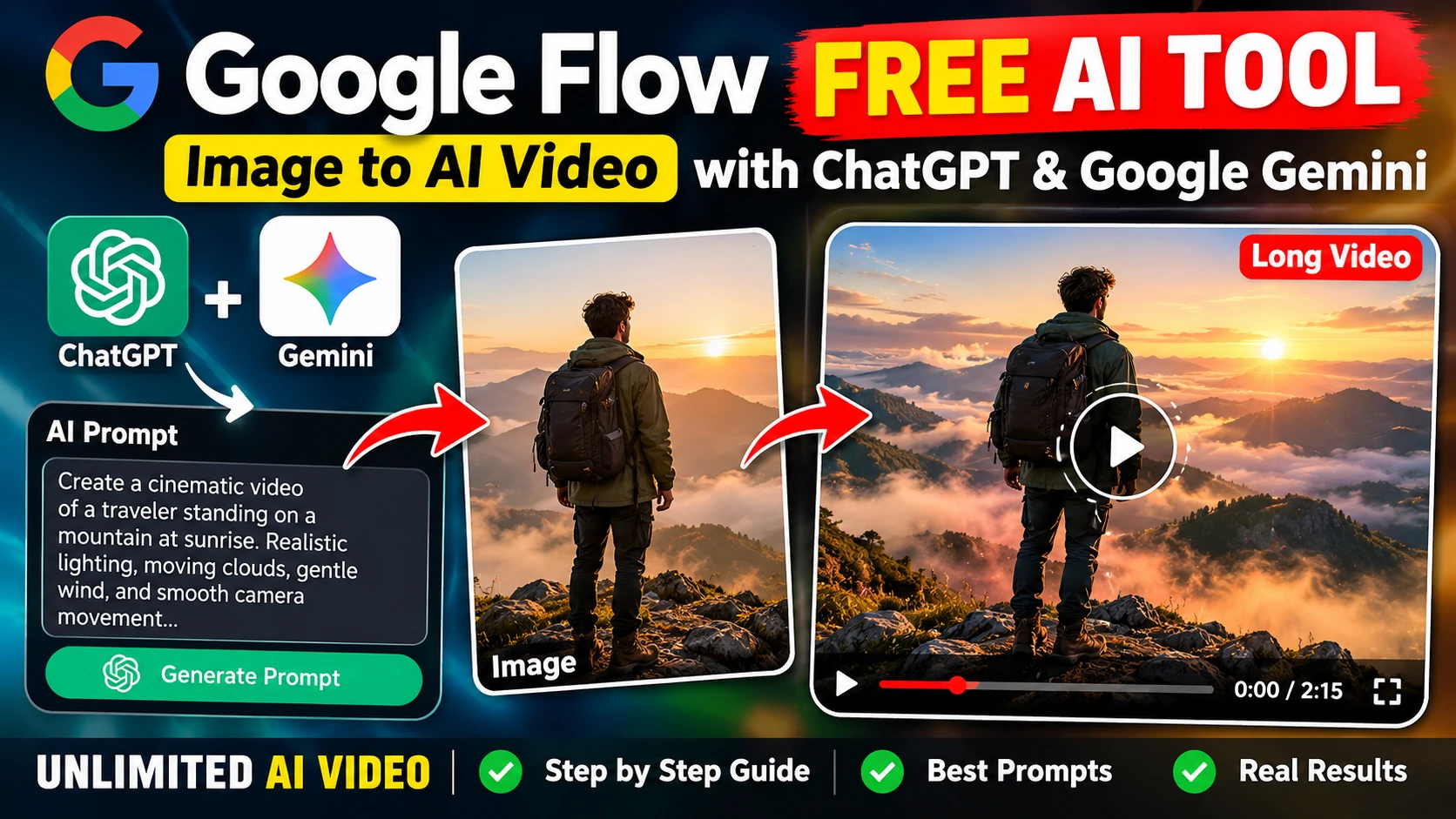
Have you ever wanted to turn a normal photograph into a cinematic AI video? You can use ChatGPT to write detailed prompts, Google Gemini to create reference images, and Google Flow to animate those images into video clips. You do not need advanced video editing skills to get started. The key is to give the AI clear instructions about the subject, movement, camera angle, lighting, and visual style.
In this guide, you will learn how to use ChatGPT to create Google Flow prompts, generate images with Gemini, animate those images in Google Flow, and combine multiple clips into a longer video. This tutorial is designed for beginners who want to create AI videos for YouTube, Instagram Reels, Facebook, and other content platforms.
What Is Google Flow AI?
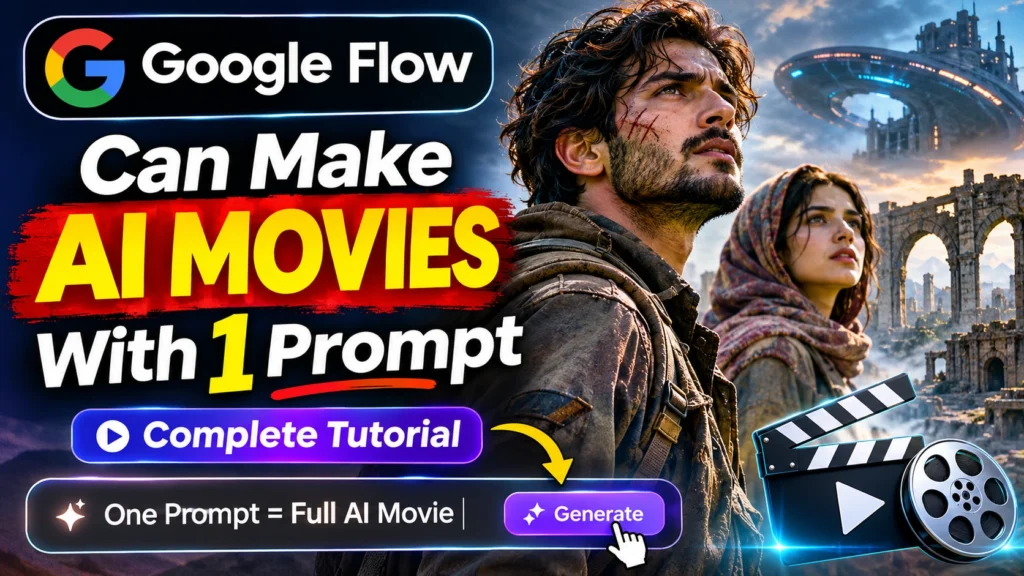
Google Flow is an AI filmmaking tool from Google that helps users generate video clips and develop cinematic scenes using generative AI models.
Depending on the features available to your account, you can use Flow to create videos from text prompts, animate reference images, develop connected scenes, and work with supported video extension and editing features.
Official website: https://labs.google/fx/tools/flow
Google Flow offers free access subject to credits and availability. It does not guarantee unlimited free video generation. Check your available credits and current plan details before starting.
Why Use ChatGPT to Create Google Flow Prompts?
ChatGPT can turn a simple idea into a detailed video-generation prompt. For example, you might write: “Make a cinematic video of a boy walking in the rain.”
This gives the video generator very little information about the scene. ChatGPT can expand that idea by describing the character’s appearance, walking speed, camera movement, raindrops, reflections, lighting, atmosphere, and visual style. A more detailed prompt can help you communicate your creative idea more clearly. However, the final quality still depends on the model, reference image, and generation settings. You can use ChatGPT to create prompts for:
- Image-to-video animation.
- Cinematic AI storytelling.
- AI mythology videos.
- Horror and suspense scenes.
- Romantic cinematic videos.
- Travel and nature videos.
- Product advertisements.
- Longer videos made from multiple clips.
Step 1: Ask ChatGPT to Create a Google Flow Video Prompt
Open ChatGPT and explain what kind of video you want to create. For example:
“I want to create a cinematic video of a young man walking through a rainy city at night. Write a detailed Google Flow image-to-video prompt with realistic movement, cinematic lighting, and smooth camera motion.” ChatGPT can prepare a prompt that you can copy into Google Flow.
For better results, mention your subject, setting, action, camera movement, lighting, aspect ratio, and the elements that must remain consistent.
Step 2: Use This Master ChatGPT Prompt
This master prompt instructs ChatGPT to act as an AI video prompt writer. You can reuse it for different video ideas.
Master Prompt for Creating Google Flow AI Videos
Copy the following prompt into ChatGPT and replace the topic with your own idea.
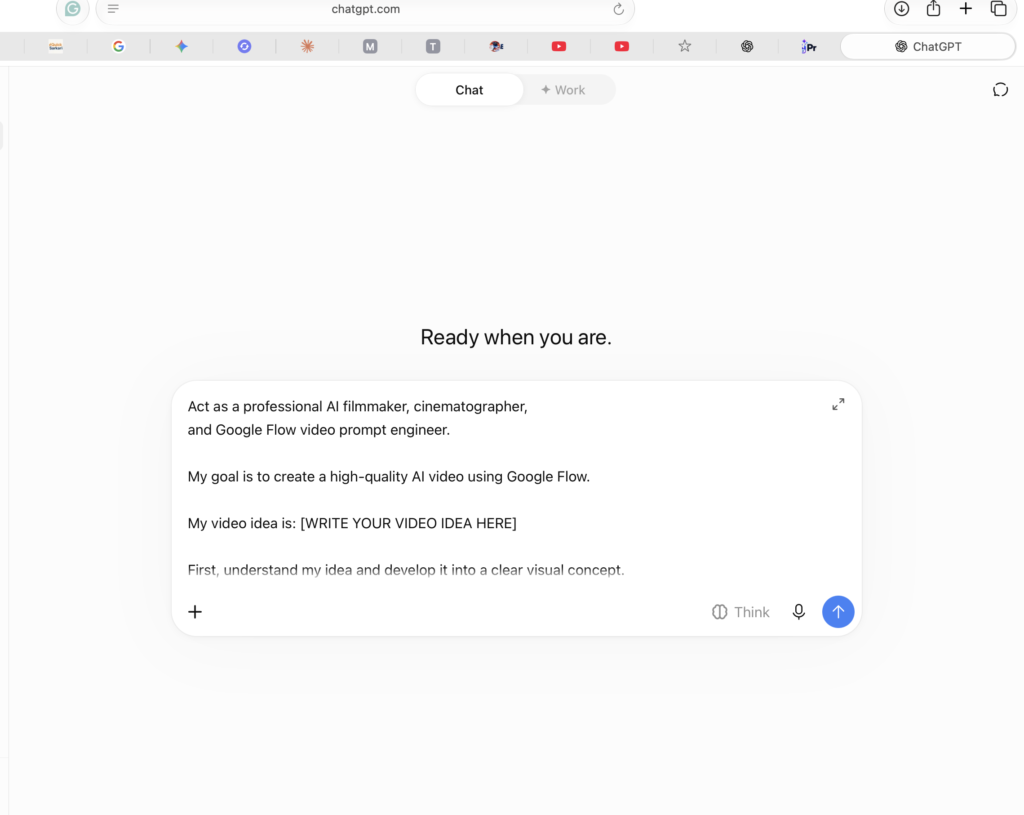
Act as a professional AI filmmaker, cinematographer,
and Google Flow video prompt engineer.

My goal is to create a high-quality AI video using Google Flow.

My video idea is: [WRITE YOUR VIDEO IDEA HERE]

First, understand my idea and develop it into a clear visual concept.

Then provide the following:

1. A detailed image-generation prompt for creating the
   opening image using ChatGPT or Google Gemini.

2. A detailed Google Flow image-to-video prompt.

3. The main subject's appearance, clothing, and environment.

4. The subject's movement and background movement.

5. Camera movement, camera angle, and shot composition.

6. Lighting, atmosphere, colors, and visual style.

7. Instructions to preserve the subject's identity and
   important details from the reference image.

8. Instructions to reduce flickering, distorted anatomy,
   unnatural movement, and unwanted scene changes.

9. Recommended aspect ratio for my intended platform.

10. Suggestions for creating the next connected scene.

Keep each video prompt focused on one continuous action.
Use clear, specific instructions instead of vague descriptions.

Do not claim that Google Flow supports a feature unless it is
available for the selected model.

Return the final prompts in separate, copy-ready code blocks.

My preferred style is photorealistic and cinematic.
My target platform is [YouTube / Instagram Reels / Facebook].
My desired video length is [INSERT DURATION].

If the full duration cannot be generated in one request,
divide the project into manageable clips that can be edited
together into a longer video.
After ChatGPT generates the prompts, review them and copy the image-generation prompt and video prompt separately.
Step 3: Generate a Reference Image with ChatGPT or Gemini
Before animating your image, create a clear reference image that matches your video concept. For example, use this image-generation prompt.
Image Prompt: Cinematic Rainy Night
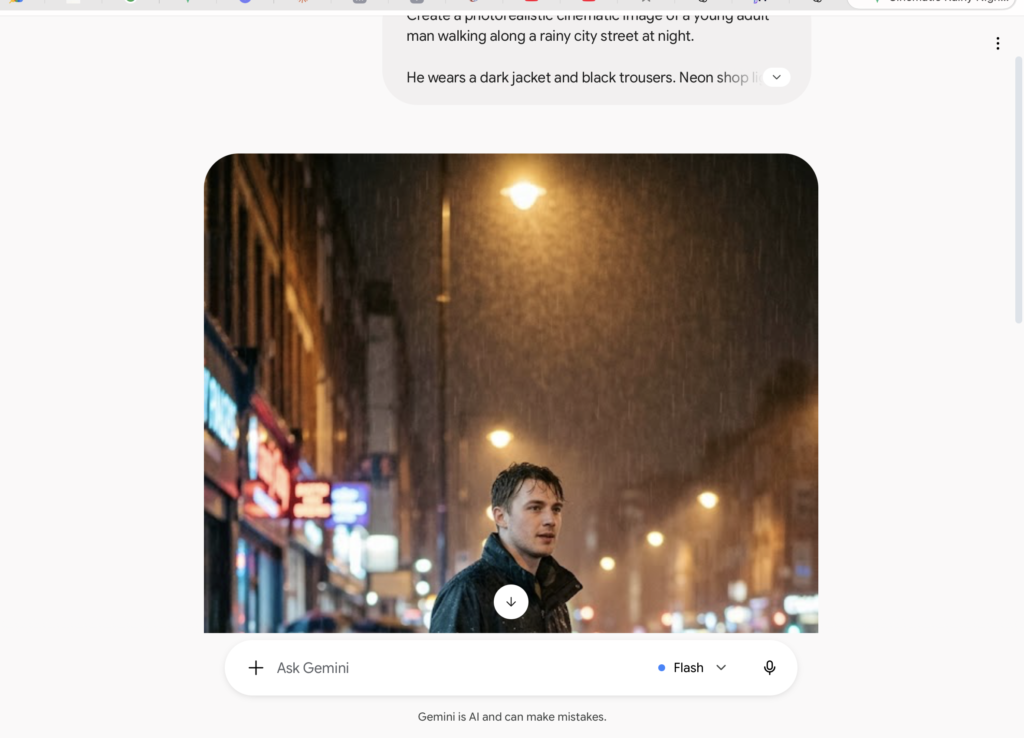
Create a photorealistic cinematic image of a young adult
man walking along a rainy city street at night.

He wears a dark jacket and black trousers. Neon shop lights
reflect across the wet pavement. Light rain falls through
the streetlights, and blurred traffic lights appear in the
background.

Use realistic skin texture, natural body proportions,
detailed clothing, reflections, atmospheric lighting,
and professional cinematic composition.

Show the subject from a medium-wide angle with enough
space around him for natural movement in a later video.

Use a vertical 9:16 composition suitable for Instagram
Reels and YouTube Shorts.

Avoid distorted hands, extra limbs, artificial skin,
unwanted text, and unrealistic reflections.
Generate the image using an available image-generation feature. Review the result and save the image you want to animate. If you are using a real person’s photograph, make sure you have permission to use it.
Step 4: Turn the Image into a Video with Google Flow
Now open the official Google Flow website.
- Sign in with your Google Account.
- Create a new project.
- Select the appropriate image-to-video workflow or supported starting-frame option.
- Upload your reference image.
- Choose an available video model and supported settings.
- Paste the video prompt generated by ChatGPT.
- Generate the video and review the result.
The exact interface and available options can change. Follow the controls displayed in your account.
Google Flow Image-to-Video Prompt
Use this prompt to animate the rainy street image.
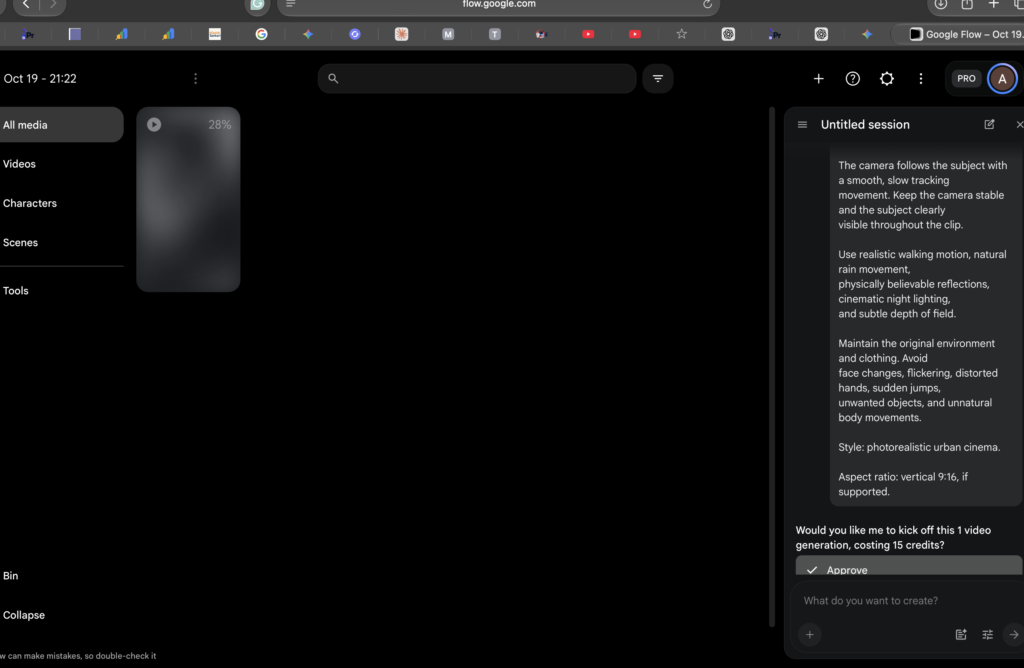
Animate the uploaded reference image into a realistic
cinematic video.

Preserve the main subject's facial identity, clothing,
body proportions, and overall appearance.

The young man walks slowly along the wet city pavement.
Rain falls naturally around him. Neon signs cast colorful
reflections across the ground, and distant traffic lights
glow softly in the background.

The camera follows the subject with a smooth, slow tracking
movement. Keep the camera stable and the subject clearly
visible throughout the clip.

Use realistic walking motion, natural rain movement,
physically believable reflections, cinematic night lighting,
and subtle depth of field.

Maintain the original environment and clothing. Avoid
face changes, flickering, distorted hands, sudden jumps,
unwanted objects, and unnatural body movements.

Style: photorealistic urban cinema.

Aspect ratio: vertical 9:16, if supported.
Generate the clip and check whether the person, background, and motion look natural. If the result contains errors, ask ChatGPT to refine the prompt based on the specific problem.
Step 5: Create More Scenes with ChatGPT
You can use ChatGPT to plan a sequence of connected scenes instead of generating the entire story in one request. For example, a rainy-city video could contain these scenes.
- Scene 1: The man enters a rainy street.
- Scene 2: He walks past neon shop signs.
- Scene 3: He stops beneath a streetlight and looks at the rain.
- Scene 4: A vehicle passes, creating reflections on the wet road.
- Scene 5: The camera slowly pulls back as he continues walking.
Each scene should have its own image or video prompt. Reuse the same character description and reference images to help maintain continuity.
ChatGPT Prompt for Multiple Connected Scenes
Act as an AI film director and Google Flow prompt writer.

Create five connected scenes for this video idea:

[A YOUNG MAN WALKING THROUGH A RAINY CITY AT NIGHT]

For every scene, provide:

1. Scene number and purpose.
2. A short visual description.
3. A detailed reference-image prompt.
4. A separate Google Flow image-to-video prompt.
5. Subject movement and background movement.
6. Camera angle and camera movement.
7. Lighting and atmosphere.
8. Character continuity instructions.
9. A suggested transition to the next scene.

Keep the main character's appearance, clothing, and
environment consistent across all scenes.

Make each video prompt focus on one continuous action.
Avoid complicated actions that may cause visual errors.

Do not assume all scenes can be generated in one request.
The final video will be assembled from individual clips.
Copy each scene prompt into the appropriate tool and generate the clips one at a time.
Step 6: How to Create a Longer AI Video Using One ChatGPT Prompt
You can ask ChatGPT to plan a 5-minute, 10-minute, or longer video with a single planning prompt. However, the planning prompt does not mean Google Flow will generate the complete video in one request. You will generally need to create multiple clips and assemble them in a video editor. Use this prompt to plan a 10-minute AI film.
Long AI Video Planning Prompt
Act as a professional AI filmmaker and video production
planner who specializes in Google Flow.

Video topic: [INSERT YOUR STORY IDEA]
Target duration: 10 minutes
Target platform: YouTube
Visual style: Cinematic and photorealistic

Develop a complete video production plan.

Include:

1. An engaging opening scene.
2. A complete story with a beginning, middle, and ending.
3. A timeline covering the target duration.
4. A scene-by-scene breakdown.
5. Reference-image prompts for characters and locations.
6. Google Flow image-to-video prompts for each clip.
7. Camera movements and lighting instructions.
8. Character continuity instructions.
9. Dialogue, narration, and sound-effect suggestions.
10. Editing instructions for assembling the final video.

Keep each individual clip focused on a manageable action.
Specify which scenes require new reference images.

Make the scenes visually connected and maintain character
consistency throughout the story.

Do not assume Google Flow can generate the entire 10-minute
video in one request. Plan the project as separate clips.

Return the prompts in clearly labelled, copy-ready code blocks.
ChatGPT can help structure the story and prepare the prompts. You must still generate the footage, review the output, and edit the clips into the final video.
Step 7: Improve Your Google Flow Results
Use these practical tips when creating your next video.
- Use a clear reference image. Avoid images with obscured faces or confusing backgrounds.
- Describe one main action per clip. Complicated scenes can produce inconsistent results.
- Specify camera movement. For example, request a slow push-in or a smooth tracking shot.
- Preserve important details. Repeat the subject’s clothing, appearance, and environment in connected scenes.
- Refine one problem at a time. If the face changes, focus your next prompt on identity consistency.
- Plan before generating. A scene outline can reduce wasted generations.
- Check your credits. Free access has limits, and repeated generations may consume additional credits.
Common Mistakes to Avoid
Avoid these mistakes when using ChatGPT to create video prompts.
- Giving ChatGPT only a vague idea.
- Mixing too many actions into one short clip.
- Forgetting to upload the reference image.
- Changing character descriptions between scenes.
- Expecting a single prompt to guarantee a long, finished video.
- Assuming that free access means unlimited generation.
- Publishing generated footage without reviewing it for visual errors.
A detailed prompt improves your instructions, but it cannot guarantee a perfect result.
Frequently Asked Questions
Can ChatGPT create Google Flow prompts for free?
You can use ChatGPT to write and refine prompts. Feature availability and usage limits depend on your ChatGPT account. Google Flow has its own separate access and credit restrictions.
Can I convert an image into a video using ChatGPT and Google Flow?
Yes. You can use ChatGPT to write the prompt, create or obtain a reference image, and then upload the image to a supported image-to-video workflow in Google Flow.
Can I create a 10-minute video with one prompt?
You can plan a 10-minute project with one ChatGPT prompt. Generating the full video will generally require multiple clips and editing, depending on the available Flow features.
Does Google Flow provide unlimited free AI videos?
No. Do not assume unlimited free access. Google Flow’s free option is subject to credits, model availability, and generation restrictions.
Can beginners use this workflow?
Yes. Beginners can start with one reference image and a short video prompt. Once they understand the basic workflow, they can create more scenes and assemble them into longer projects.
Can I upload the finished videos to YouTube?
You can generally publish content you have the necessary rights to use, subject to the terms of the tools and the platform’s policies. Review copyright, commercial-use, and monetization requirements before publishing.
Conclusion
ChatGPT can help you turn simple video ideas into detailed Google Flow prompts. Google Gemini can help you develop reference images, while Google Flow can animate those images into cinematic video clips.
Start with a single image, describe the movement clearly, and generate one scene at a time. When you want a longer video, use ChatGPT to plan the story, prepare prompts for each scene, and assemble the clips in an editor.
For the best results, focus on clear instructions, consistent characters, realistic motion, and careful review of every generated clip.
Visit the official Google Flow website to check the current features and free-access limits before starting your project.
Official website: https://labs.google/fx/tools/flow