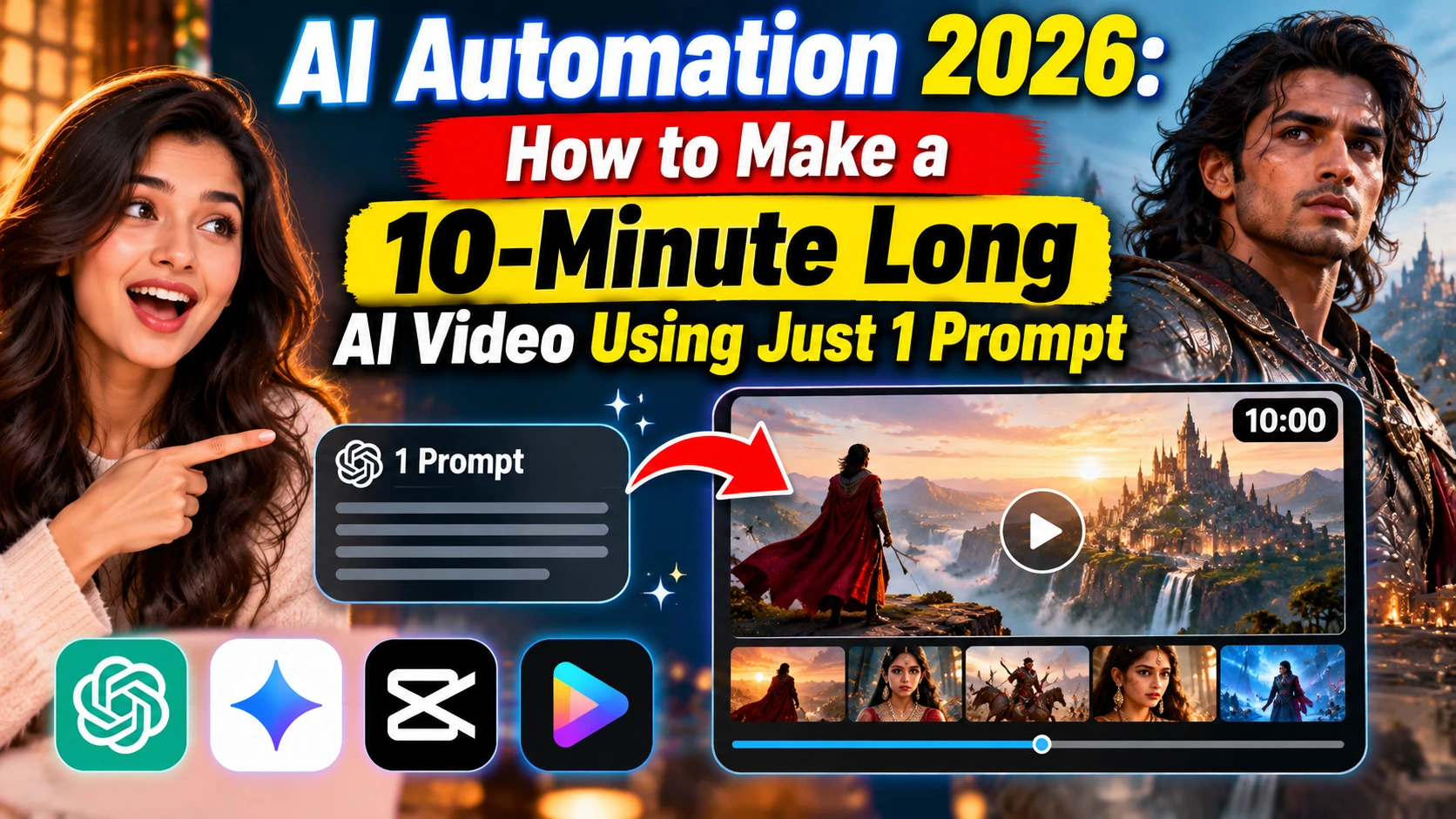
AI Automation 2026: AI video creation is changing how creators produce YouTube videos, cinematic stories, educational content, and social media videos. Tasks that once required multiple editing tools, separate scene prompts, voice recording, and hours of manual work can now be streamlined with AI-powered workflows.
One exciting approach is to use a single detailed prompt to plan an entire 10-minute AI video. Instead of describing every scene individually, you give an AI tool your story, visual style, characters, narration requirements, and editing instructions in one prompt.
The AI workflow can then help you generate the script, divide it into scenes, create visual clips, produce voiceovers, and assemble the final video.
In this guide, you will learn how AI video automation works, which tools you can use, how to write a powerful one-prompt instruction, and how to turn your idea into a complete long-form video in 2026.
A quick clarification: one prompt does not guarantee that every AI video generator will produce a finished 10-minute video in a single step. Most workflows still require scene generation, reviewing clips, and combining the results. The goal is to automate as much of that process as possible.
What Is AI Video Automation in 2026?
AI video automation is a workflow that uses artificial intelligence to handle multiple stages of video production. These stages may include story development, scriptwriting, image creation, video generation, narration, subtitles, and editing.
For example, imagine you want to create a 10-minute mythology video about Lord Krishna, a cinematic science-fiction story, or a documentary about ancient civilizations.
You can write one detailed master prompt that tells an AI assistant how to plan the complete project. The assistant can then prepare a structured script, scene descriptions, narration, and individual video prompts.
You can use those outputs with a video generator and editing software to assemble the final project.
The key is to separate planning from rendering. One prompt can coordinate the workflow, but the video generator may still need multiple generations.
Best AI Tools for Creating Long Videos
These tools can help you build an AI video production workflow. Their availability, pricing, and features may change before 2026, so check the current product pages before starting.
1. Google Flow
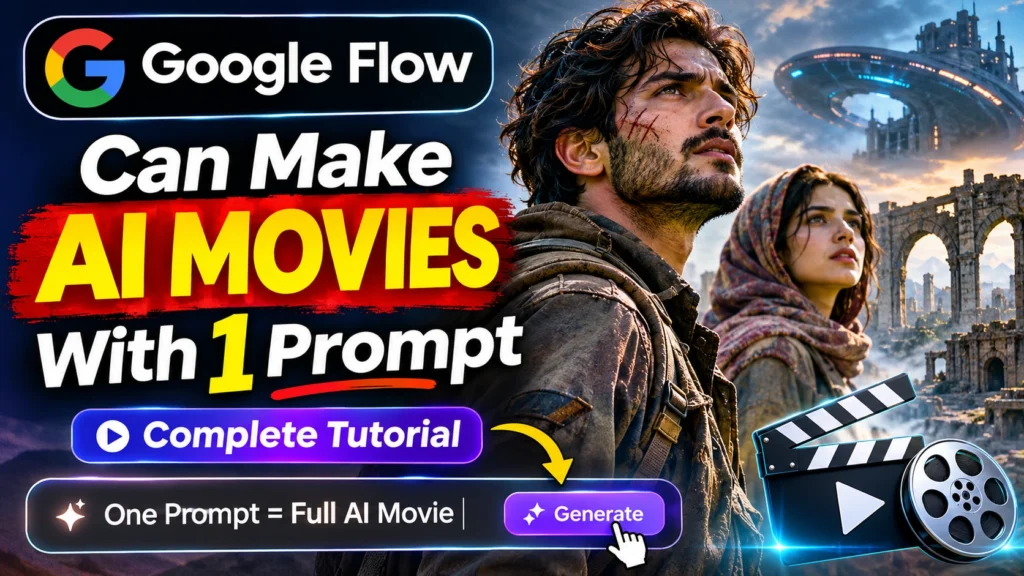
Google Flow supports cinematic scene creation, reference-based generation, clip extension on supported models, and video editing. It is useful for building connected scenes from a larger story.
2. Runway
Runway offers AI video generation, editing, clip extension, and workflows for combining multiple generations. Its reference-based features can help maintain character and visual consistency across scenes.
3. Google Gemini
Use Gemini to develop your master prompt into a full script, scene-by-scene storyboard, narration, character descriptions, and video-generation instructions.
4. CapCut
Use a video editor to arrange generated clips, synchronize narration, add subtitles, adjust audio levels, and export your final video. Check the availability and terms of the features you plan to use.
Important: Video-generation models have different clip-duration limits. For example, Google’s Veo 3.1 API documentation describes generations of up to eight seconds per clip under its listed settings, while Google Flow also offers other models with different duration options.
How to Make a 10-Minute AI Video Using One Prompt
Follow these steps to create your first long-form AI video.
Step 1: Choose Your Video Topic
Start with one clear idea. Avoid combining unrelated subjects in the same video. Some ideas include:
- AI mythology stories with cinematic visuals.
- Zombie apocalypse survival stories.
- Historical documentaries.
- Mystery and suspense stories.
- Educational videos about science and technology.
- Fictional animated stories for general audiences.
For a YouTube video, choose a topic that can hold viewers’ attention for the full 10 minutes.
Step 2: Write One Master Prompt
A master prompt explains the entire project to your AI assistant. It should specify the topic, target audience, duration, aspect ratio, visual style, narration, scene structure, character consistency, music, and ending.
The AI assistant should produce a complete production plan rather than a short summary.
Step 3: Generate the Script and Scenes
Ask the AI to divide the video into manageable scenes. For a 10-minute video, you could use 60 scenes lasting an average of 10 seconds each, or fewer scenes with longer narration and supporting visuals. Each scene should include:
- Scene number and duration.
- Visual description.
- Camera movement.
- Character appearance.
- Narration or dialogue.
- Sound effects and background audio.
- A transition to the next scene.
This structure makes the project easier to generate, edit, and review.
Step 4: Create Consistent Characters
Character consistency is essential for storytelling. If your main character wears a black jacket in one scene, the same character should retain that appearance in later scenes unless the story requires a change.
Create a character reference image when the selected tool supports it. Reuse the reference across scenes and repeat important visual details in the scene instructions.
Reference-based workflows can help maintain consistency, although they do not guarantee perfect results.
Step 5: Generate the Video Clips
Use the scene prompts to generate individual clips. Follow the generation limits of your chosen tool.
Review every clip before moving to the next stage. Regenerate scenes that contain distorted faces, inconsistent clothing, incorrect movement, unwanted text, or visual errors.
Step 6: Add Voiceover and Sound
Use a consistent narration voice throughout the video. Match the narration to the scene timing and keep background music below the speech level.
Check pronunciation, pauses, sound effects, and dialogue synchronization. If the video generator produces usable audio, you may use it, but review it before publishing.
Step 7: Assemble and Export
Import the approved clips into your video editor. Arrange them in the correct order, add narration, insert subtitles, and balance the audio.
For a standard YouTube video, use a 16:9 landscape format. Export at a resolution supported by your footage and editing setup, then watch the entire video before uploading it.
Copy-and-Use Master Prompt for a 10-Minute AI Video
The following master prompt is designed to help you plan a long-form AI video using one detailed instruction. Replace the topic and customize the style to suit your channel.
MASTER PROMPT: CREATE A 10-MINUTE AI VIDEO USING ONE PROMPT

Act as an expert AI filmmaker, cinematic storyteller,
screenwriter, video editor, and AI automation director.

YOUR TASK:
Create a complete production plan for a high-quality,
approximately 10-minute AI-generated video using the topic
provided below.

VIDEO TOPIC:
[Enter Your Topic Here]

VIDEO DURATION:
Approximately 10 minutes.

VIDEO FORMAT:
16:9 widescreen, cinematic composition, high-quality visuals,
clear narration, smooth transitions, and professional pacing.

VISUAL STYLE:
Use realistic cinematic lighting, detailed environments,
natural movement, expressive characters, realistic textures,
controlled camera movements, and a consistent color palette.

STEP 1: WRITE THE STORY
Create an engaging story with a strong opening, a clear central
conflict, meaningful developments, a compelling climax, and
a satisfying ending.

Write narration suitable for the target duration. Estimate
the required word count using a natural speaking speed.

STEP 2: CREATE A SCENE-BY-SCENE PLAN
Divide the video into manageable scenes according to the
story and the capabilities of the selected AI video tool.

For every scene, provide:
1. Scene number and timestamp.
2. Scene duration.
3. Detailed visual description.
4. Character actions and expressions.
5. Environment and lighting.
6. Camera angle and camera movement.
7. Narration or dialogue.
8. Background audio and sound effects.
9. Transition to the next scene.
10. A ready-to-use video-generation prompt.

Ensure the total planned duration is approximately 10 minutes.

STEP 3: MAINTAIN CHARACTER CONSISTENCY
Create a character reference sheet before generating scenes.

Define facial features, hairstyle, clothing, body proportions,
age range, voice, and distinctive characteristics.

Keep these details consistent throughout the video.
Use reference images or supported character-reference features
when available.

STEP 4: GENERATE VISUAL PROMPTS
Write clear, specific prompts for each scene.

Describe the subject, action, setting, lighting, camera
movement, mood, composition, and ending frame.

Avoid unnecessary changes to character appearance, clothing,
location, and visual style between connected scenes.

STEP 5: CREATE NARRATION
Provide the complete narration separately from the visual
prompts.

Use natural language, clear pronunciation, appropriate pauses,
and emotional delivery that matches each scene.

Keep the narration synchronized with the planned timeline.

STEP 6: AUDIO AND EDITING
Specify where narration, background music, ambient sound,
and sound effects should appear.

Suggest suitable transitions and subtitle timing.

Keep dialogue understandable and background music at a
lower level than the narration.

STEP 7: AUTOMATION WORKFLOW
Organize the output so that supported automation tools can
process the script, scene prompts, narration, generated clips,
and editing instructions.

Do not claim that a task has been completed unless the
connected tools actually perform it.

STEP 8: QUALITY CONTROL
Check for continuity errors, inconsistent characters,
repeated scenes, incorrect timing, visual defects, and
audio synchronization problems.

Flag scenes that require regeneration or manual editing.

STEP 9: FINAL OUTPUT
Provide:
A. Complete video script.
B. Character reference sheet.
C. Scene-by-scene timeline.
D. Individual video-generation prompts.
E. Voiceover script.
F. Audio and subtitle instructions.
G. Editing and assembly instructions.
H. Final quality-control checklist.

IMPORTANT:
Do not attempt to create the entire 10-minute video as one
uninterrupted clip unless the selected tool explicitly
supports that duration.

Plan the complete project from one master prompt, then
generate, assemble, and review the required assets using
available tools.

Begin by analyzing the topic and creating the complete
production plan.
How to Automate the Entire Workflow
If you want to reduce manual work further, organize your workflow into connected stages. A typical workflow looks like this:
Idea and master prompt → Script generation → Scene breakdown → Visual generation → Voiceover generation → Video assembly → Subtitles → Final quality check.
You can use an automation platform to connect compatible services where APIs or supported integrations are available. For example, an automated workflow could read the scene plan, send each scene prompt to a supported generation service, save the resulting clips, and prepare them for assembly.
Some stages may still require approval or manual intervention. Video-generation APIs can have usage limits, processing delays, costs, and restrictions on supported durations. Start with a short test project before automating a complete 10-minute video. This helps you identify errors without spending unnecessary credits
Tips for Better AI Video Results
Keep the Opening Interesting
The first 15 to 30 seconds should establish the subject and give viewers a reason to continue watching. Avoid long introductions that delay the main story.
Use Detailed but Clear Prompts
Include the subject, action, environment, lighting, camera movement, and visual mood. Avoid filling every prompt with unrelated adjectives.
Check Character Continuity
Use the same reference images and character descriptions across connected scenes. Review every generated clip before adding it to the timeline.
Match Narration to Visuals
A scene should show what the narration describes. If the voiceover discusses a particular event, make sure the corresponding visual appears at the right time.
Avoid Unnecessary Scene Changes
Too many unrelated shots can make a long video feel disconnected. Use a consistent visual style and clear transitions.
Review Copyright and Platform Requirements
Use properly licensed music, images, voices, and other assets. Follow the current rules of your chosen AI tools and publishing platforms.
If your video includes realistic synthetic depictions of real people or events, consider whether disclosure is required under the relevant platform’s current policies.
These Mistakes to Be Avoided
Many creators focus on generating visuals but overlook the complete production process. Avoid these mistakes:
- Expecting every AI video tool to generate 10 minutes from one text prompt.
- Using inconsistent character descriptions.
- Writing a script that is too short for the requested duration.
- Generating every scene without reviewing the results.
- Ignoring voiceover timing and audio quality.
- Using copyrighted music without appropriate permission.
- Publishing videos containing unverified facts.
- Assuming AI-generated content automatically meets monetization requirements.
A well-planned workflow gives you more control over the final result than relying on a single generation request without checking the output.
Frequently Asked Questions
1. Can I make a 10-minute AI video with one prompt?
Yes. You can use one master prompt to plan the entire video and guide a supported workflow. You will usually need to generate individual scenes and combine them unless your chosen tool supports longer continuous video generation.
2. Which AI tool is best for long AI videos?
The best tool depends on your needs. ChatGPT can help with scripts and prompts, while video-generation tools can create scenes and editing tools can assemble the finished video. Check current features and limits before choosing.
3. How many scenes do I need for a 10-minute video?
There is no fixed number. Forty 15-second scenes or twenty 30-second scenes can each total 10 minutes. Longer scenes may work better for narration-heavy content, while shorter scenes can suit fast-paced storytelling.
4. How do I keep the same character in every scene?
Use consistent character descriptions, reference images, and supported character-reference features. Review generated clips and regenerate scenes that contain major continuity errors.
5. Can beginners create long AI videos?
Yes. Beginners can start with a short script, generate a few scenes, add narration, and assemble them in an editor. Expand the workflow after testing the quality and cost of the results.
6. Can AI-generated videos earn money on YouTube?
Potentially. Monetization depends on YouTube’s current eligibility requirements and content policies. AI use alone does not guarantee approval. Videos should provide original value, follow applicable rules, and avoid repetitive or low-effort production.
7. Is AI video automation free?
Some tools offer free access or limited credits, while other features require paid plans. Long-form projects may require multiple generations, voiceover services, storage, and editing resources. Check current pricing before starting.
Final Suggestions
AI video automation offers creators a practical way to plan and produce long-form videos with fewer repetitive tasks. A detailed master prompt can organize the script, scene descriptions, character references, narration, audio, and editing instructions into one production plan.
The key is to treat one prompt as the starting point for the complete workflow. Generate scenes with suitable tools, maintain visual consistency, assemble the clips, and review the finished video before publishing.
Whether you want to create mythology stories, cinematic adventures, documentaries, or educational videos, start with one well-structured prompt and test the workflow on a small project. Once the results meet your quality standards, you can expand the process into a more automated production system.