
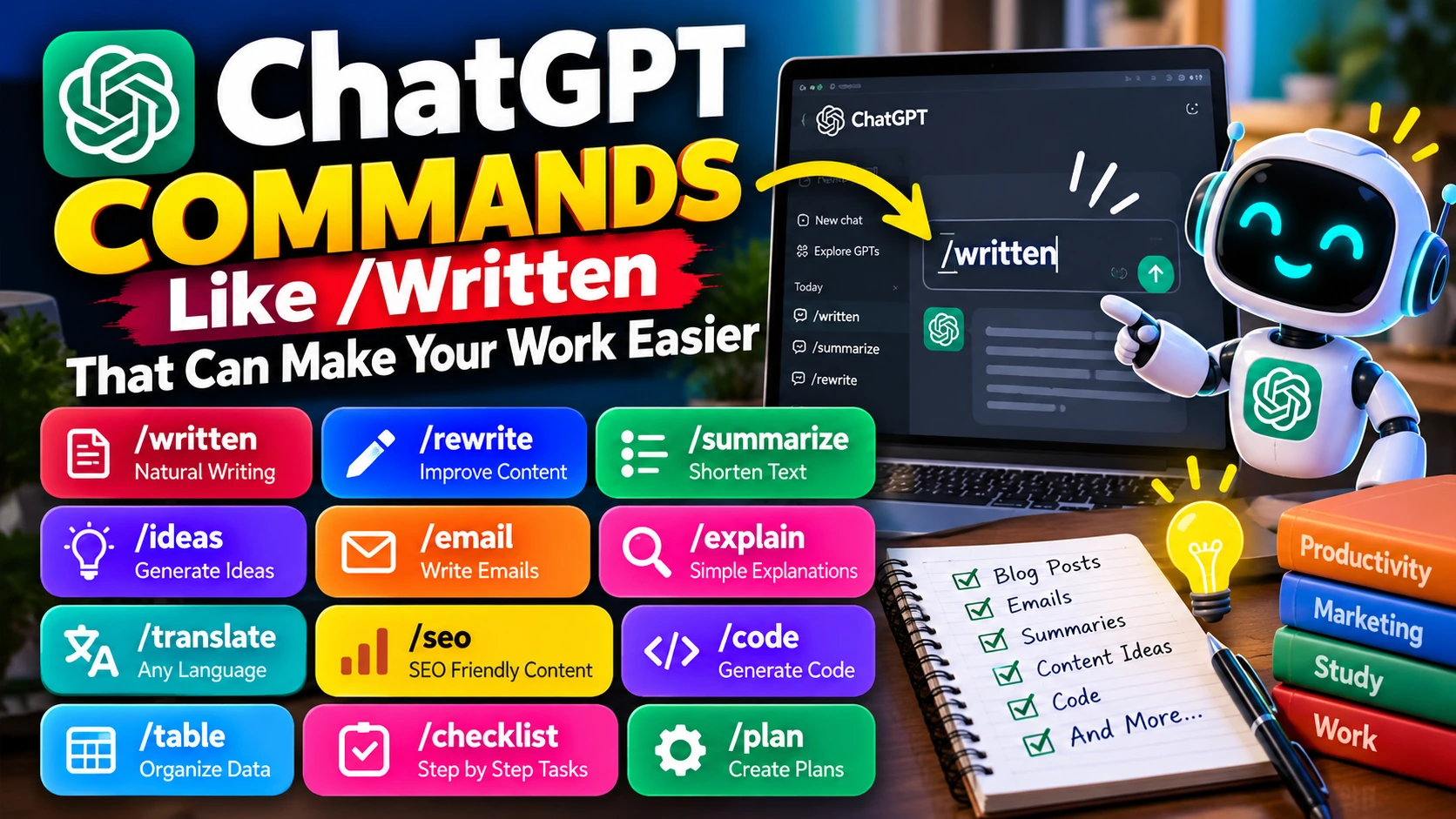
ChatGPT Commands: ChatGPT has become a useful tool for writing articles, creating social media posts, generating ideas, summarizing documents, and completing everyday tasks. However, many users still do not know how to give effective instructions to get better results.
You may have seen commands such as /written, /summarize, or /rewrite on social media. These commands are often presented as ChatGPT shortcuts that can make your work easier. But there is something important to understand. Not every command you see online is an official ChatGPT slash command. Many are simply prompt shortcuts that work when you type them as instructions.
In this guide, you will learn useful ChatGPT commands and prompt shortcuts, how to use them, and how they can save time in your daily work.
What Are ChatGPT Commands?
ChatGPT commands are short instructions that tell the AI what you want it to do. They can help you write content, improve grammar, summarize long text, generate ideas, and perform other tasks.
For example, instead of typing a long instruction such as “Please rewrite this paragraph in simple English and make it sound natural,” you can use a prompt shortcut like /rewrite followed by your text.
Remember that /rewrite is an example of a user-defined shortcut, not a guaranteed built-in ChatGPT command. ChatGPT will interpret it based on the instructions you provide.
1. /Written: Make Your Content Sound Natural
The /written shortcut can be used as a custom instruction to make your content sound natural, clear, and easy to read. You can use it for blog posts, website content, emails, captions, and other writing tasks. Example prompt:
/written Rewrite this article in natural, conversational English. Use short sentences, simple words, and a helpful tone. Avoid repetitive phrases and unnecessary jargon.
Best for:
- Blog articles
- Website content
- Social media captions
- Email writing
- Improving existing drafts
Tip: Always review the final result to ensure it accurately reflects your meaning and experience.
2. /Rewrite: Improve Existing Content
The /rewrite shortcut helps you express the same idea in a clearer or more professional way. Example:
/rewrite Rewrite the following paragraph in simple English without changing its meaning: [Paste your text here]
You can also specify a tone, such as professional, friendly, conversational, or formal.
3. /Summarize: Shorten Long Text
If you have a long article, report, PDF excerpt, or set of notes, summarization can help you identify the main points quickly. Example:
/summarize Summarize the following text in 5 bullet points. Include the key facts, dates, and important information. Use simple language.
This shortcut is useful for students, researchers, content writers, and office workers.
4. /Explain: Understand Difficult Topics
Use this prompt shortcut when you need a simple explanation of a difficult subject. Example:
/explain Explain compound interest in simple English. Give one practical example and show the calculation step by step.
You can use it to understand accounting, mathematics, technology, science, business concepts, and other topics.
5. /Grammar: Correct Grammar and Spelling
The /grammar shortcut helps identify grammar mistakes, spelling errors, and awkward sentences. Example:
/grammar Correct the grammar and spelling in the following text. Preserve my original meaning and writing style. Also, list the important corrections.
This is useful when preparing website articles, professional emails, applications, and reports.
6. /Translate: Translate Text Into Another Language
You can use a translation shortcut to translate content into another language while keeping its original meaning. Example:
/translate Translate the following English text into Hindi. Use natural, everyday language and preserve names, dates, and technical terms.
You can replace Hindi with Urdu, Kashmiri, French, Spanish, or another language.
7. /SEO: Optimize Your Blog Articles
If you manage a blog or website, SEO-related prompts can help you prepare structured content for search engines. Example:
/seo Create an SEO content plan for an article about ChatGPT shortcuts. Suggest a primary keyword, related keywords, search intent, SEO title, meta description, headings, and FAQs. Avoid keyword stuffing.
You can also ask ChatGPT to review your article for readability, missing subtopics, and search intent.
Remember that using an SEO prompt does not guarantee higher Google rankings. Content quality, accuracy, usefulness, and website performance also matter.
8. /Ideas: Generate New Content Ideas
Content creators sometimes struggle to find fresh topics. An idea-generation shortcut can help you build a list of possible articles or social media posts. Example:
/ideas Generate 20 useful blog post ideas about artificial intelligence tools. Focus on practical tutorials, trending use cases, and topics that beginners can understand.
You can narrow the results by specifying your audience, website niche, or content format.
9. /Email: Write Professional Emails
Use this shortcut when you need to write a clear and professional email without spending too much time drafting it. Example:
/email Write a polite professional email requesting an update on my application. Keep it short, respectful, and direct.
You can also ask ChatGPT to draft complaint emails, follow-up messages, leave requests, and business inquiries.
10. /Social: Create Social Media Posts
This shortcut can help you prepare captions for Instagram, Facebook, LinkedIn, or other platforms. Example:
/social Create 5 engaging Instagram captions for a post about useful AI tools. Keep each caption concise and encourage readers to try the tools.
Mention the platform and audience to receive more relevant results.
11. /Table: Organize Information
When you have information that is difficult to compare, ask ChatGPT to arrange it in a table. Example:
/table Organize the following information into a table with columns for tool name, main feature, best use, and limitations.
This works well for comparisons, study notes, project plans, and research summaries.
12. /Checklist: Turn Tasks Into Action Steps
The /checklist shortcut can turn a complicated task into a list of manageable steps. Example:
/checklist Create a practical checklist for publishing an SEO-friendly blog article on WordPress. Include research, drafting, editing, images, links, and final checks.
You can use this approach for work projects, study plans, content publishing, and daily routines.
13. /Code: Generate or Explain Code
If you work with websites or software, you can use a coding prompt to generate examples or understand existing code. Example:
/code Write a responsive HTML and CSS FAQ section for a blog article. Use accessible markup and explain how to add it to a webpage.
Always test generated code before using it on a live website.
14. /Plan: Create a Step-by-Step Plan
Use this shortcut when you have a goal but need help deciding what to do first. Example:
/plan Create a 7-day content publishing plan for a technology blog. Include daily topics, article outlines, research tasks, and publishing steps.
You can specify a deadline, budget, available time, and desired outcome to make the plan more useful.
15. /Shorten: Make Your Writing Concise
Sometimes your content contains unnecessary words or repeated ideas. This shortcut can help you make it shorter without losing the main message. Example:
/shorten Rewrite the following paragraph in fewer words. Preserve all important facts and make it easy to understand.
It is useful for headlines, introductions, captions, emails, and meta descriptions.
16. /Headline: Generate Better Headlines
A good headline tells readers what they can learn from your content. Example:
/headline Generate 10 clear, engaging headlines for an article about free AI tools for content creators. Avoid misleading claims and excessive clickbait.
You can ask for SEO-focused headlines, tutorial titles, news headlines, or social media titles.
17. /Research: Organize Research Tasks
This shortcut can help you identify questions to investigate before writing an article. Example:
/research Create a research checklist for an article about AI video generators. Identify important features, pricing details, limitations, privacy questions, and facts that require verification from current sources.
For recent information, verify claims using reliable, up-to-date sources. ChatGPT may not always have the latest details.
18. /Prompt: Create Better AI Prompts
Use this shortcut when you want to create a detailed prompt for another AI tool. Example:
/prompt Create a detailed prompt for an AI image generator to produce a cinematic landscape image. Specify the subject, lighting, camera angle, composition, colors, and aspect ratio.
This is useful for image generation, AI video creation, product photography, and visual content.
19. /Review: Check Your Content Before Publishing
The /review shortcut can help you identify weaknesses in an article or document before sharing it. Example:
/review Review the following article for factual accuracy, clarity, grammar, repetition, missing information, and readability. Identify problems and suggest specific improvements.
For important factual claims, independently verify the information instead of relying only on an AI review.
20. /Humanize: Improve Readability
The /humanize shortcut is commonly used in online prompt collections to request more natural-sounding writing. Example:
/humanize Rewrite this draft in a clear, natural tone. Use varied sentence structures, remove repetitive wording, and preserve the original facts and meaning.
This can improve readability, but it does not guarantee that content will pass AI-detection tools or prove that a person wrote it.
How to Use These ChatGPT Shortcuts
You do not need to memorize every shortcut. Follow these simple steps.
- Open ChatGPT.
- Start a new chat or open an existing conversation.
- Type a shortcut, such as
/rewrite, followed by your instruction. - Paste the text or information you want ChatGPT to work with.
- Review the response and ask for corrections if needed.
For example, type:
/rewrite Make this article easier to read. Use short paragraphs, simple English, and clear headings. Keep all important facts unchanged.
ChatGPT can then interpret the instruction and help revise your text.
Important: These examples are custom prompt shortcuts. Typing a slash command does not automatically activate a special feature unless that command is supported by the particular ChatGPT interface or tool you are using.
How to Create Your Own ChatGPT Shortcut
You can create your own reusable shortcuts by defining what each one means. For example, you can define /blog as follows:
Whenever I type /blog, help me prepare a useful blog article. Start with an introduction, use descriptive headings, explain the topic with practical examples, and finish with relevant FAQs. Keep the language simple and verify factual claims where possible.
You can then type:
/blog Write an article about free AI tools for students.
ChatGPT can follow the definition in that conversation. For more consistent results, save your preferred instructions in a reusable prompt document or use an appropriate ChatGPT customization feature when available.
Best ChatGPT Shortcuts for Different Users
| User type | Useful shortcuts |
|---|---|
| Bloggers | /written, /rewrite, /seo, /headline |
| Students | /explain, /summarize, /translate, /checklist |
| Office workers | /email, /grammar, /table, /plan |
| Social media creators | /ideas, /social, /prompt, /headline |
| Developers | /code, /explain, /review |
| Researchers | /research, /summarize, /table, /review |
These are suggested custom shortcuts, not a list of guaranteed built-in slash commands.
Tips for Getting Better Results From ChatGPT
Use these practices to make your instructions more effective.
- Be specific about the task you want ChatGPT to complete.
- Explain who will read the content.
- Specify the tone, length, and format.
- Provide examples when you want a particular style.
- Ask ChatGPT to preserve important facts.
- Verify dates, statistics, prices, and other factual claims.
- Review the final output before publishing or sharing it.
For example, instead of typing “Write an article about AI,” give a more detailed instruction:
“Write a beginner-friendly article about AI video generators. Explain their main features, show practical use cases, include limitations, and use clear headings. Keep the article informative and avoid unsupported claims.”
A specific instruction usually produces a more useful result than a vague one.
Frequently Asked Questions
Are ChatGPT slash commands official?
Some ChatGPT features and interfaces may support specific slash commands. However, shortcuts such as /written, /seo, /humanize, and /summarize are generally examples of custom prompts unless your interface explicitly supports them.
Does /written work in ChatGPT?
You can type /written followed by a clear instruction. However, the word itself does not guarantee a special mode. Explain what you want, such as natural language, shorter sentences, or a professional tone.
Can I use these commands for free?
Most of the tasks described in this article can be requested through ordinary ChatGPT prompts. Access to particular models, tools, or advanced features may depend on your plan and current product availability.
Can I create my own ChatGPT commands?
Yes. You can define reusable instructions for shortcuts in a conversation, save them in a document, or use supported customization features. Their behavior depends on the instructions and interface you use.
Which ChatGPT shortcut is best for bloggers?
For bloggers, useful starting points include /written for natural-sounding drafts, /rewrite for editing, /seo for content planning, and /headline for title ideas. Treat these as prompt templates rather than guaranteed built-in features.
Final Thoughts
ChatGPT shortcuts can make everyday work easier when you use them as clear, reusable instructions. They can help you write articles, correct grammar, summarize information, generate ideas, and organize tasks.
Start with three shortcuts: /rewrite, /summarize, and /ideas. Learn how to use them effectively, then create your own shortcuts for tasks you perform regularly. The key is simple. Give ChatGPT a clear instruction, provide the necessary context, and review the result before using it.